Guide to reading CELA titles with Victor Stratus 2
Overview
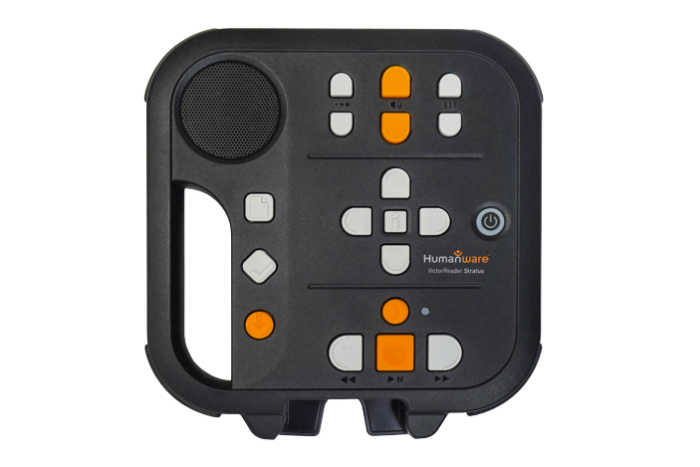 This guide provides information to get you started with reading CELA books and magazines on the Stratus 2.
About the Stratus 2
The Victor Stratus 2 is a simple to use digital talking books player. It connects to your CELA account and downloads books over a wireless internet connection. Alternatively, you can load CELA content on a USB key, connect it to the player, and read them from there. It is also possible to connect the player directly to the computer and load files using the free HumanWare Companion software.
Where to get Stratus 2
The Stratus 2 may be obtained directly from the manufacturer (HumanWare), and from Canadian Assistive Technology . Some provinces may offer subsidy programs to support purchasing a player for users with print disabilities.
Stratus 2 at HumanWare
Stratus 2 at Canadian Assistive Technology
How to get books or magazines
There are a few options to receive digital audiobooks from CELA on your Stratus 2.
Using internet
Books can be placed on your personal Direct to Player bookshelf. The Stratus connects to it via wireless internet and allows you to select and start reading any of the titles currently on your bookshelf. You can learn more about this on our Direct to Player page. To set up Direct to Player on your Stratus 2, refer to How to configure a Stratus 2 for CELA Direct to Player access.
Without using internet
If wireless internet access is not an option for you, the Stratus 2 can read books from a USB drive or by transferring files directly from your computer. In this case, you will need to log in to your CELA account on a computer and download the books. For more information on loading books this way, see the tutorial: How to transfer a DAISY .zip book to your Victor Stratus.
Layout of Stratus 2
Stratus 2 diagram
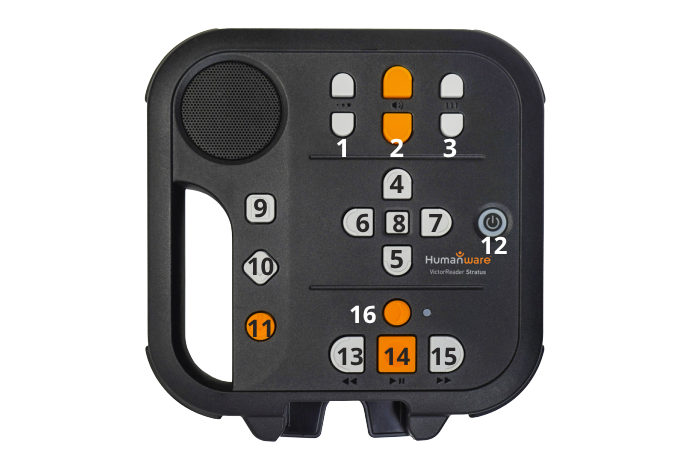
- Tone
- Volume
- Speed
- Up
- Down
- Left
- Right
- Information
- Bookshelf
- Bookmark
- Book management
- Power
- Rewind
- Play/Stop
- Fast forward
- Sleep
Stratus 2 layout description
Your Stratus 2 may have a protective cover meant to avoid accidentally using some of the more advanced functions. This cover will need to be removed to access books from CELA. For instructions on how to remove it, see Stratus 2 user guide (Word document).
Layout (without protective cover)
The built-in speaker is located on the upper left corner of the face.
On the top centre, there are three pairs of up and down keys. From left to right, these are the Tone, Volume and Speed controls.
Beneath the Tone, Volume and Speed controls, in the centre of the face of the player, you will find the four arrow shaped navigation keys UP, DOWN, LEFT and RIGHT allowing you to easily move through the structure of a book. In the middle of these navigation keys is the Information key, giving info about current book, accessing menus and more.
To the right of the four Navigation keys is the Power key. It is slightly recessed to prevent you from accidentally pressing it.
To the left of the four Navigation keys, about midway down the player, are three more keys.
- Bookshelf
- Bookmarks
- Book management key (for returning and deleting books from the player and accessing battery status and other info).
Beneath the four Navigation keys is a group of four keys. Three of them are lined up along the lower edge of the player. These are, from left to right, the Rewind, Play/Stop and Fast Forward keys. Finally, above the Play/Stop key is the Sleep key. It is crescent shaped and has an orange LED.
How to listen to a book or magazine with Stratus 2
This guide assumes that you have already set up Direct to Player service, connected a USB drive loaded with books, or transferred books from your computer to your Stratus. For more information, see tutorials for How to configure a Stratus 2 for CELA Direct to Player access or How to transfer a DAISY .zip .book to your Victor Stratus.
Powering the Stratus 2 on or off: Press and hold the Power key (right hand edge of the face of the player). If the player is off, it will turn on and beep once. If it was on, pressing and holding the Power key turns the player off.
Once your player has powered on, if it is set up for Direct to Player service, it will begin downloading books and magazines. This could take between five and 30 minutes.
Choosing a book
To access the list of available books, press the Bookshelf key (top key on left hand edge of the face of the player). Use the Left or Right keys to jump from title to title until you hear the one you want. Confirm your selection by pressing the Play key (middle key along the bottom of the face of the player). The book will start playing from the last reading position.
Playing a book
Below is a list of instructions on how to perform the most common functions of your Stratus 2 player.
- Play/Stop: Press Play (middle key along the bottom of the face of the player) to start listening to your book. Press the Play key again to stop playback.
- Rewind, and Fast forward: Holding down the Rewind or Fast Forward keys (to the left and right of Play key) moves you backwards and forwards through the book.
- Navigating a book or magazine: The four navigation keys help you quickly move from one book element to another.
- The Up and Down keys (arrow-shaped keys pointing up and down in the centre of the face of the player) change navigation level and allow you to choose if you want to jump between chapters, subsections, pages etc. The options depend on the way the book was produced.
- The Left and Right keys (arrow-shaped keys pointing left and right in the centre of the face of the player) move you backwards or forwards between locations at the selected navigation level.
- Note: If you accidentally press the Left or the Right key, press the opposite key within 10 seconds and you will be returned to your previous location.
- Tone/volume/speed: Along the top of the face of the player is a group of three up-down buttons. From left to right, the first set is to adjust tone, the middle set is to adjust volume and the last set is to adjust the speed of the playback.
- Info: Use the Info button (between the Navigation keys at the centre of the face of the player) to find out information about the book and your current reading position Download Stratus 2 User Guide (Word document) for more information.
How to remove books from your Stratus 2
When you are done reading a title from CELA, we ask you to remove it from your Stratus 2.
Whether you use CELA’s Direct to Player service, use a USB key or transfer books from a computer, the way to return books is the same.
- Press the Bookshelf key and use the forward or backward navigation keys to find the book or magazine you would like to remove.
- Press the Book management key (bottom key on left hand side of the face of the player), and you will be asked if you want to remove the book. Confirm by pressing the Play button or press any other key to cancel.
- Press Play/Stop again to confirm.
Tips and where to get help
Useful tips
Key describer
If you would like to learn more about each key and its function you can enter a key describer mode. When it is active, pressing any key speaks its function, without taking any action. Press the Power key without holding it down to enter this mode. Press it again to return to normal functions.
User guide
The Stratus 2 has a preloaded user guide talking book. Press and hold the Bookshelf key to start listening to it. Press the Bookshelf key again to exit the user guide. The user guide is also available from the HumanWare web page: Download Stratus 2 User Guide (Word document).
Where to get help
If you need help with your Direct to Player service, with listening to CELA books on Stratus 2, or with anything to do with your CELA account, services or materials, we are here to help!
- 1-855-655-2273, Monday to Friday, 8:00 am to 7:30 pm Eastern time
- help@celalibrary.ca
When you are done reading a title from CELA, we ask you to remove it from your Stratus 2.
Whether you use CELA’s Direct to Player service, use a USB key or transfer books from a computer, the way to return books is the same.
- Press the Bookshelf key and use the forward or backward navigation keys to find the book or magazine you would like to remove.
- Press the Book management key (bottom key on left hand side of the face of the player), and you will be asked if you want to remove the book. Confirm by pressing the Play button or press any other key to cancel.
- Press Play/Stop again to confirm.
Tips and where to get help
Useful tips
Key describer
If you would like to learn more about each key and its function you can enter a key describer mode. When it is active, pressing any key speaks its function, without taking any action. Press the Power key without holding it down to enter this mode. Press it again to return to normal functions.
User guide
The Stratus 2 has a preloaded user guide talking book. Press and hold the Bookshelf key to start listening to it. Press the Bookshelf key again to exit the user guide. The user guide is also available from the HumanWare web page: Download Stratus 2 User Guide (Word document).
Where to get help
If you need help with your Direct to Player service, with listening to CELA books on Stratus 2, or with anything to do with your CELA account, services or materials, we are here to help!
- 1-855-655-2273, Monday to Friday, 8:00 am to 7:30 pm Eastern time
- help@celalibrary.ca