Service Alert

Direct to Player and Alexa skill temporarily unavailable

Direct to Player service and Accessible Reading Canada for Alexa are temporarily unavailable while we perform important maintenance. We apologize for the inconvenience.

Public library services for Canadians with print disabilities
  • Mobile accessibility tips
    • Change contrast
      • AYellow on black selected
      • ABlack on yellow selected
      • AWhite on black selected
      • ABlack on white selected
      • ADefault colours selected
    • Change text size
      • Text size Small selected
      • Text size Medium selected
      • Text size Large selected
      • Text size Maximum selected
    • Change font
      • Arial selected
      • Verdana selected
      • Comic Sans MS selected
    • Change text spacing
      • Narrow selected
      • Medium selected
      • Wide selected
  • Register
  • Log in
  • Français
  • Home
  • Newspapers
  • Magazines
  • Recommended
  • For libraries
  • Help
  • Skip to content
      • Change contrast
        • AYellow on black selected
        • ABlack on yellow selected
        • AWhite on black selected
        • ABlack on white selected
        • ADefault colours selected
      • Change text size
        • Text size Small selected
        • Text size Medium selected
        • Text size Large selected
        • Text size Maximum selected
      • Change font
        • Arial selected
        • Verdana selected
        • Comic Sans MS selected
      • Change text spacing
        • Narrow selected
        • Medium selected
        • Wide selected
  • Accessibility tips
CELAPublic library services for Canadians with print disabilities

Centre for Equitable Library Access
Public library service for Canadians with print disabilities

  • Register
  • Log in
  • Français
  • Home
  • Newspapers
  • Magazines
  • Recommended
  • For libraries
  • Help
  • Advanced search
  • Browse by category
  • Search tips
Breadcrumb
  1. Home
  2. Services for Public Libraries

Envoy Connect Service for Libraries

About the Envoy Connect player

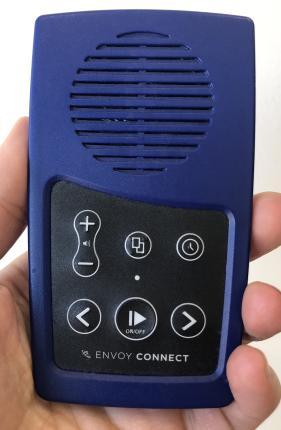
The Envoy Connect is an easy to use, portable, and affordable option for reading accessible audiobooks. The device is the size of a deck of cards and has an intuitive interface with six navigation buttons and an integrated speaker.  It can be loaded with CELA books or magazines either by using our free Windows PC software CELA Connect, or patrons can mail in their personal device to CELA and it  will be loaded with new titles and returned to them free of charge. The Envoy Connect holds at least 12 CELA titles and more can be added using a Micro SD card.

At this time, only the Envoy Connect 2 is available for purchase from CNIB Smartlife. The only difference between the original Envoy Connect and the Envoy Connect 2 is that the Envoy Connect 2 has a USB-C charging port while the original Envoy Connect is charged via Micro-USB. Both models can also be charged using the solar panel on the back of the player.

How it works

CELA books and magazines are added onto an Envoy Connect player through a computer loaded with our free software called CELA Connect.  The software downloads items from the library’s or patron’s CELA Direct to Player bookshelf and adds them onto the player. The same process works for removing books.

Learn more about the Envoy Connect service
  • Envoy Connect and CELA Connect Guides
  • FAQ for libraries about Envoy Connect and CELA Connect
  • Envoy Connect webinar for libraries
Hand holding a Envoy Connect device

Using Envoy Connect players at your library

Here you will find all the details you'll need to offer Envoy Connect players to your patrons:
  • Preparing library-owned players for loan
  • Loan library-owned players preloaded with books from your library’s CELA account
  • Loan empty library-owned players (without preloaded books)
  • Support for patrons with their own player

Preparing library-owned players for loan

Libraries may wish to assemble Envoy Connect kits to offer patrons all the items they’ll need to use the device at home. An Envoy Connect can hold at least 12 CELA titles and more can be loaded onto a Micro SD card. Please note that CELA books on the devices you loan may only be read by patrons with print disabilities.

Create your own Envoy Connect kit:

  • Envoy Connect player: comes with a Micro-USB cable (Envoy Connect) or USB-C cable (Envoy Connect 2), headphones and a lanyard
  • Storage case
  • Additional Micro-USB or USB-C cords 
  • Additional wall charging plugs

Before you loan the players:

  1. Charge and test each player. You may need to remove books from the last time it went out.
  2. Listen to the Envoy Connect Quick Start Guide which is included as one of the books on the player. You can also read it online and in other formats.
  3. Install the free CELA Connect Software on computers you will use for loading Envoy Connect devices.
  4. Identify the player belongs to your library by sticking labels with your library’s name to the back of the player. Avery 5167 labels work well.
  5. Know your CELA six-digit account number and password. Can’t find it? Contact Member Services at members@celalibrary.ca or call 1-855-655-2273 ext. 2.

Loan library-owned players preloaded with books from your library’s CELA account

Libraries have the option of either:

  1. using their main CELA account to load books onto one or more Envoy Connect players, or 
  2. setting up separate accounts for each Envoy Connect player. 

The second option provides separate borrowing histories for each device. If you would like to set up individual accounts for your library’s Envoy Connect players, please contact us at Member Services.

Whether or not you have separate accounts for your Envoy Connects, the main steps to load them are the same.

Adding books to Direct to Player bookshelf

  1. On CELA’s web page, log in to the account you wish to use for loading the Envoy Connect using the six-digit username and your password.
  2. Choose books and/or magazines and add them to the Direct to Player bookshelf. Use the DAISY audio (Direct to Player) option.
  3. Wait a few minutes and go to "My account" and open your Direct to Player bookshelf to check that they have been added.

Managing content on the Envoy Connect using the CELA Connect software

To access the Direct to Player bookshelf to add and remove titles, the program needs to log in with the CELA username and password for the corresponding account. There are two ways this information can be stored:

  • Link the player’s serial number
    • If you have created separate accounts for each player, you can contact us and have us link each player’s serial number to its corresponding account. This way, any time a player is plugged in to a computer running CELA Connect software, it automatically connects to the linked account, making it convenient to keep track which player is associated to which account. 
  • Log in to CELA Connect using account credentials
    • If you have chosen to load all your library’s Envoy Connect players using your main CELA account, linking the player’s serial number is not advisable. It would allow a patron using the CELA Connect software themselves to delete books from your library’s bookshelf. Instead, enter the account credentials when you connect the player to your computer. You will have the option to save them so that all players you connect will use the same account.

Using the CELA Connect software

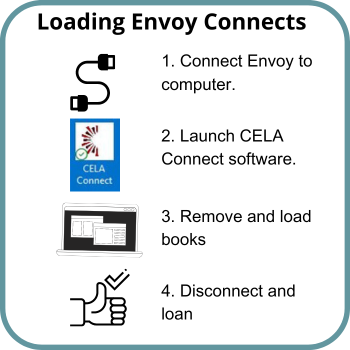
  1. Connect the Envoy Connect player using a Micro-USB (Envoy Connect) cable or USB-C (Envoy Connect 2) to the library computer which has the CELA Connect software already installed.
  2. Open the CELA Connect software.
  3. You may be asked to enter CELA username and password and have the option to save these for the future.
  4. Remove and download titles from your Direct to Player bookshelf.
  5. Disconnect your player from the computer.
  6. Repeat this process for each player you are loaning to patrons.
Loading Envoy Connect steps

CELA Connect Software

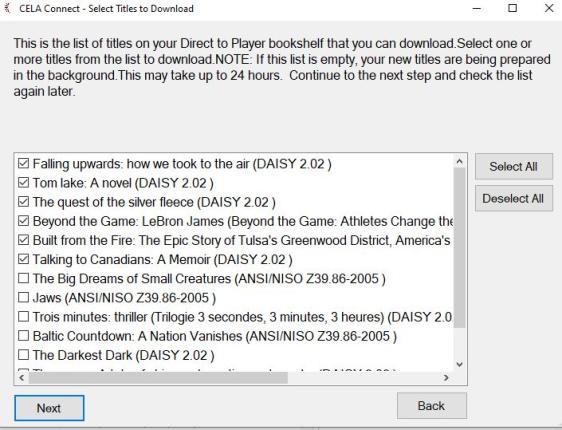
Libraries may pick which books to remove and add to their players. Connect one of your players to your computer and open the CELA Connect software. Select which books to remove or add by selecting the checkboxes beside each title.

CELA Connect software showing books to add to Envoy Connect player.

Loan empty library-owned players (not preloaded with books)

Please mention these points to patrons who are borrowing Envoy Connect players:

  • Patrons will need to log into CELA's site with their own username and password to choose their books. You can register them or they can self-register if they have a library card number.
  • Patrons will need to download the CELA Connect software and access their personal CELA account to add and remove books.
  • Patrons should not ask CELA to link the player’s serial number to their CELA account.
  • Remind patrons to return the player to the library and not send it to back to CELA to reload more books.
  • Ask patrons to delete all the books off of the player before they return it to the library.

Support for patrons with their own Envoy Connect player

Libraries may choose to support Envoy Connect users by helping them reload their devices with new CELA books.

Reloading players using the patron’s CELA account:

  1. Patrons must provide the library with permission to access that account.
  2. Patrons must have books already added to their CELA Direct to Player bookshelf. We recommend they add these books at least 24 hours in advance of when they want to load their player, to ensure books are ready prior to visiting the library.
  3. If the serial number of the patron’s player has already been linked with their CELA account, all you need to do is plug the player into a computer and open the CELA Connect software. If the serial number is not loaded, you will need the patron’s CELA username and password to log into the CELA Connect software.

Reloading a patron’s player using the library’s CELA account:

  1. The library must have books already loaded on to their CELA Direct to Player bookshelf. You can load the same book onto more than one patron’s account since the book will remain on your bookshelf until you delete it.
  2. Plug the player into a computer and open the CELA Connect software. Add or remove books onto or from the player.

FAQ

Which devices can I use to read books and magazines from CELA?

Answer: CELA books and magazines work with many popular accessible reading devices and apps. Find out more on ourCompatible devices and formats page.

Go to Frequently Asked Questions page

About us

The Centre for Equitable Library Access, CELA, is an accessible library service, providing books and other materials to Canadians with print disabilities.

  • Learn more about CELA
  • Privacy
  • Terms of acceptable use
  • Member libraries
  • What is a print disability?

Follow us

Keep up with news from CELA!

  • Subscribe to our newsletters
  • Blog
  • Facebook
  • Bluesky
  • Instagram
  • Youtube

Suggestion Box

CELA welcomes all feedback and suggestions. Please contact us with your comments.

  • Suggest a title for the collection
  • Report a problem with a book
  • Reconsideration of materials
  • Join our Educator Advisory Group
  • Apply for our User Advisory Group

Contact Us

Email us at help@celalibrary.ca or call us at 1-855-655-2273 for support.

Go to contact page for full details

Copyright 2026 CELA. All rights reserved.